5. TheorChem2Blender - Specifying ionic radii
Overview
TheorChem2Blender is a program that has 5 tabs. Which tabs to modify depend on the type of 3D file the user wants to create. For the simplest use of the program, you only need to specify the input, and convert it as output. The default output format is glb. Below is a continuation on how to use TheorChem2Blender, focused specifying ionic radii information. Refer to (3) basic use for information about how to choose com input files to convert, and (4) highlighting bonds for how to highlight atoms and bonds.
Input tab
Leave .com as the input file
Click on set to select the input name
Go to inpuut_examples/com_files/minerals/
Select halite.com as the input
Ions tab
Select the check for ionic radii box
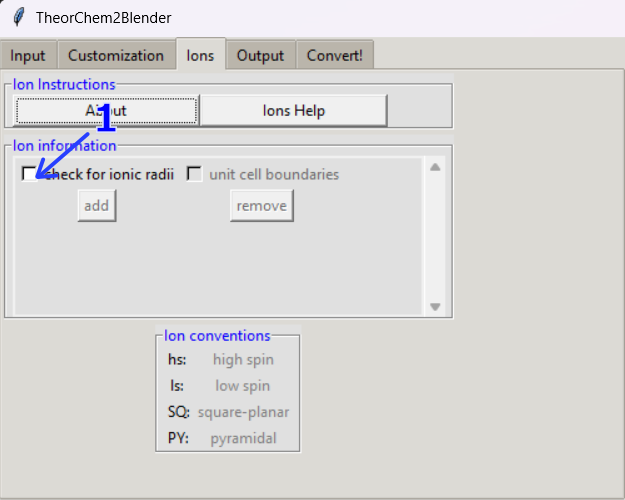
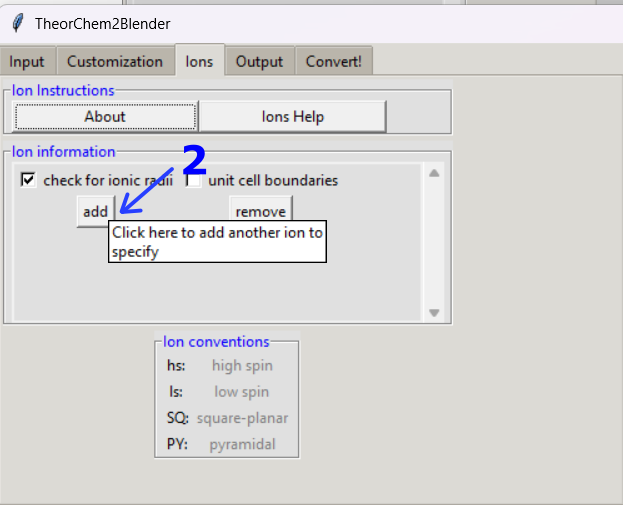
Click on add to add an element
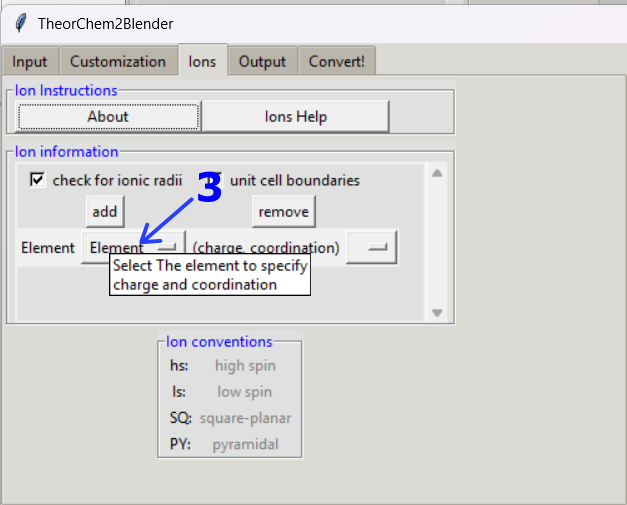
Click on Element to select an element
Select Na from the drop down list that appeared
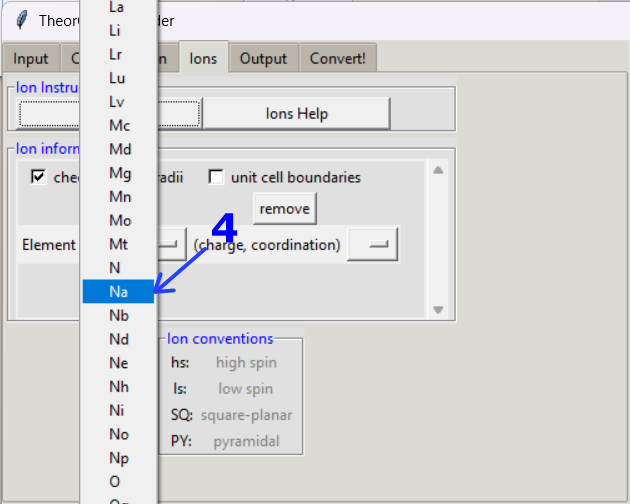
Specify the charge and coordination for the atom (+1) and VI for halite
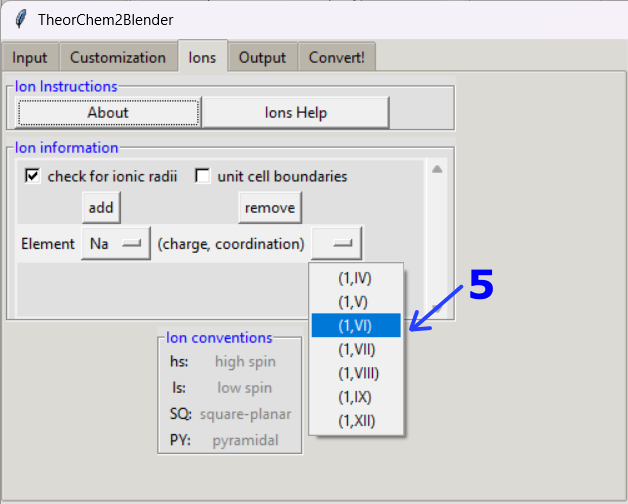
Follow steps 4 and 5 for the chloride anion with a coordination ov VI as well.
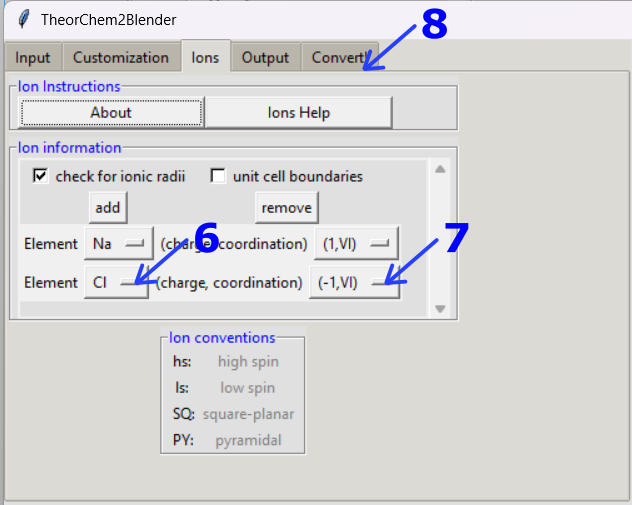
Click on the Convert! tab
Convert the input to the default glb output format
Your file will appear by default in the output/ folder.
Note
🎥 To see a video recording of this walkthrough, visit the following link: Watch on YouTube
Previous: (4) highlight atoms and bonds Next: (6) Animations with com input